 NitroWarpNitroWarp
 Open full size
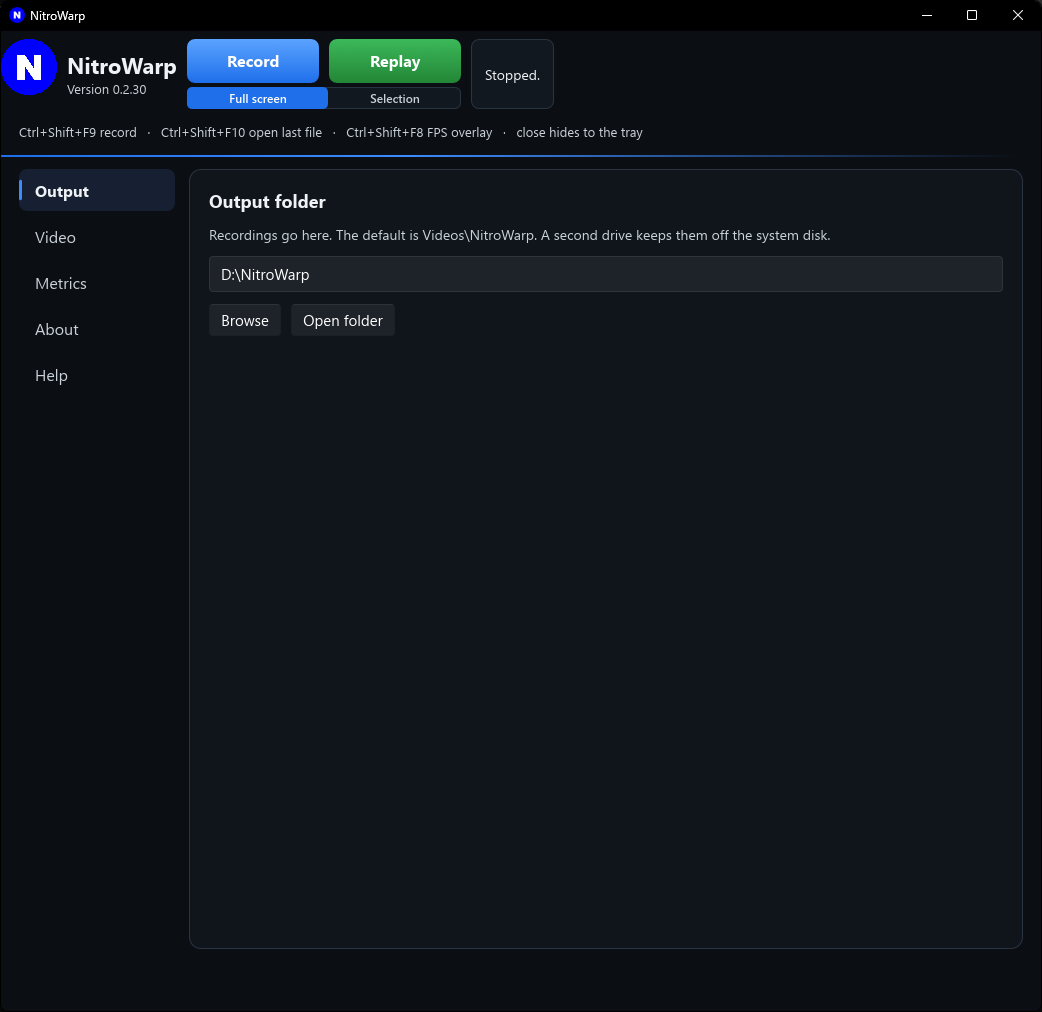
Every recording is saved in the folder on the Output page. Type a path, or click Browse. Open folder opens that folder in File Explorer.
The usual folder is Videos\NitroWarp. If you have a second drive, put the folder there. Video files get large, and the system disk stays quieter.
The file name is chosen for you when you click Record. Replay opens the newest one.
The folder, codec, capture box, and the other choices are stored in %LOCALAPPDATA%\NitroWarp\NitroWarp.ini. That folder belongs to the Windows user who is signed in. Another account on the same PC has its own copy.
Removing the program does not empty that folder, and it does not delete the recordings.
NitroWarp keeps an icon in the notification area so a recording can outlive the window.
Only one NitroWarp runs at a time. Starting it again asks you to check the tray.
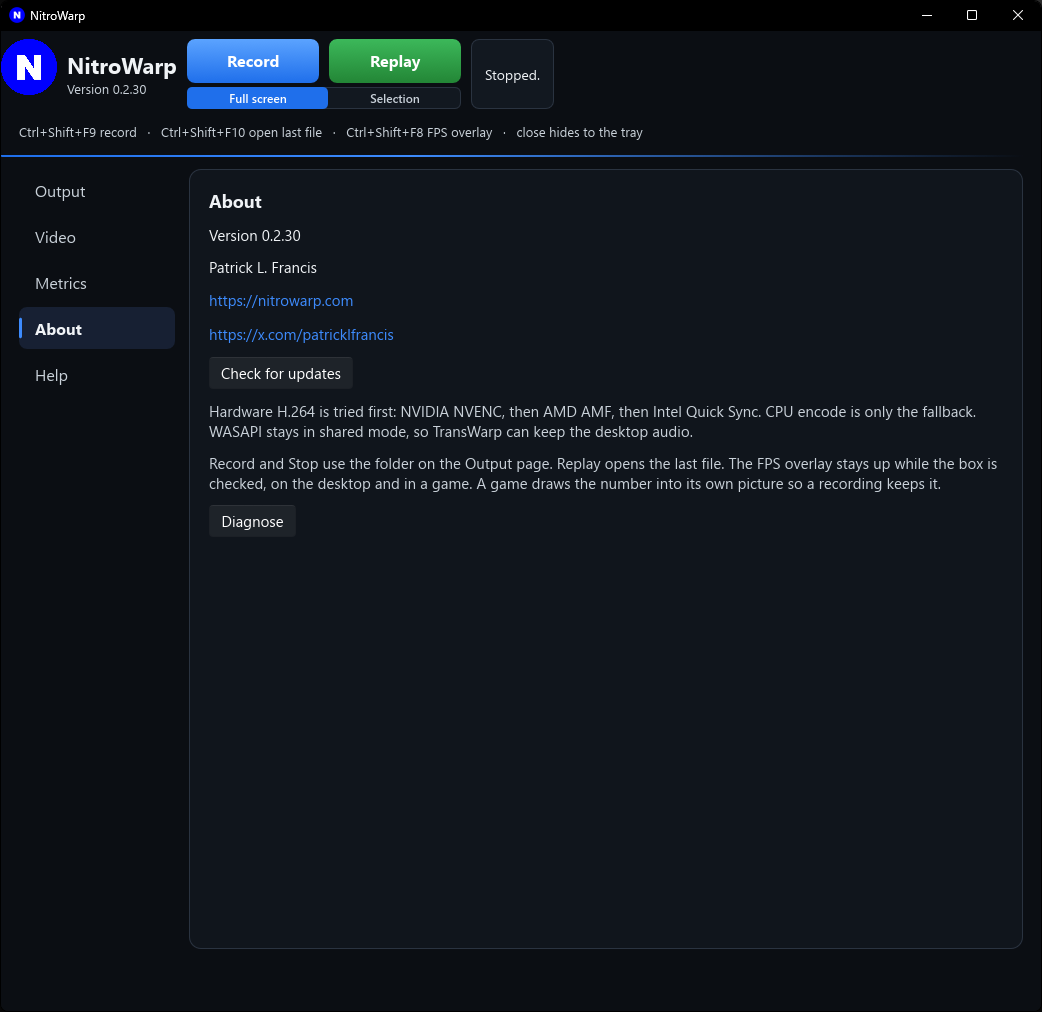
On the About page, Diagnose writes diagnose.txt under %LOCALAPPDATA%\NitroWarp\logs and opens it. The file describes the capture and encode path on this PC. It does not start a recording.
 Open full size
About shows the version, Patrick L. Francis, nitrowarp.com, and https://x.com/patricklfrancis. Check for updates reads the version on nitrowarp.com. A newer copy downloads and installs when a recording is not running. The settings and the recordings stay where they are. NitroWarp also looks on its own, about a minute after it starts and then about twice a day.
Hardware H.264 is tried in this order: NVIDIA, AMD, then Intel. The CPU is used only when those cannot encode. Audio stays in shared mode so another program can keep the desktop sound.